
Everything you need to get started
Step-by-step guides for every BizBotify feature — from setup and team inbox to campaigns, analytics, and automation.
No guides found for “”. Try a different search.
 17:22
Product demo
The whole of BizBotify in one tour
17:22
Product demo
The whole of BizBotify in one tour
 6:41
Inbox
One WhatsApp inbox for your whole team
6:41
Inbox
One WhatsApp inbox for your whole team
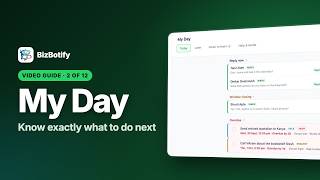 4:43
My Day
Know exactly what to do next
4:43
My Day
Know exactly what to do next
 9:40
Contacts
Know every customer, reach the right ones
9:40
Contacts
Know every customer, reach the right ones
 8:11
Campaigns
One message, the right customers
8:11
Campaigns
One message, the right customers
 5:12
Follow-ups
The follow-up nobody forgets
5:12
Follow-ups
The follow-up nobody forgets
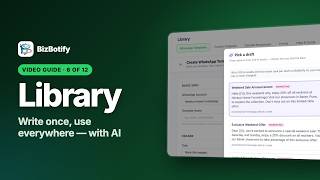 7:15
Library
Write it once, use it everywhere
7:15
Library
Write it once, use it everywhere
 6:51
Automation
Answer instantly, day and night
6:51
Automation
Answer instantly, day and night
 9:10
Workflows
The next step happens by itself
9:10
Workflows
The next step happens by itself
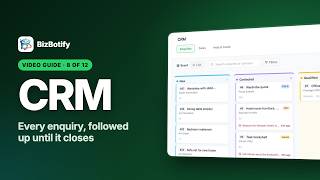 8:21
CRM
From enquiry to sale
8:21
CRM
From enquiry to sale
 4:50
Analytics
See how your WhatsApp business is really doing
4:50
Analytics
See how your WhatsApp business is really doing
 10:47
Settings
Set it up once, the right way
10:47
Settings
Set it up once, the right way
Link your WhatsApp Business number and finish the guided verification steps.
Read guide →Invite team members and give each person the right level of access.
Read guide →Generate, label, and revoke API keys for external integrations.
Read guide →Filter, open, and reply to customer conversations in the shared inbox.
Read guide →Route any conversation to the best person to handle it.
Read guide →Resolve finished chats, snooze them until later and mark them unread.
Read guide →Leave private notes for your teammates that customers never see.
Read guide →Save common replies as shortcuts your whole team can insert instantly.
Read guide →Why a chat says "not supported" or a message failed, and what to do about it.
Read guide →Send a template, assign an owner or start a follow-up when a card moves, a tag changes or a date comes round.
Read guide →Give the AI a profile, train it on your website and hand chats to your team.
Read guide →Build in-chat forms for bookings, leads and feedback with starters or AI.
Read guide →Use the visual builder to automate bookings, orders, and lead capture.
Read guide →Reply instantly with text or a template when a message matches a word.
Read guide →Configure the AI to answer customer questions using your business knowledge.
Read guide →Add FAQs, prices, and policies so the AI can answer customer questions accurately.
Read guide →Answer 24/7 with AI or send an instant acknowledgement to every chat.
Read guide →Greet every new contact automatically with a New contact chatbot flow.
Read guide →Create approved templates to send proactive messages to customers.
Read guide →Pick a ready-made template or chatbot flow and customize it for your business.
Read guide →Save text, button and media replies to reuse in keyword rules and chatbot flows.
Read guide →Create, target, and send a bulk WhatsApp message in minutes.
Read guide →Tag contacts so you can target the right people in each campaign.
Read guide →Set a future date and time for your campaign to send automatically.
Read guide →Handle STOP and START replies automatically and keep opted-out customers out of campaigns.
Read guide →View profiles, edit details, add tags, and manage your full contact list.
Read guide →Bring your existing customer list into BizBotify from a CSV file.
Read guide →Understand message volume, agent performance, and campaign results.
Read guide →Use deeper reports to improve response times, campaigns, and conversion.
Read guide →Send approved templates over days, started by a workflow when a tag is added, a card enters a stage or its temperature changes.
Read guide →See a customer's chats, campaigns, notes and tasks, and the workspace audit log.
Read guide →