
Set up a workflow: send a WhatsApp when a lead changes stage
Pick what starts it, add conditions and steps, test it on a real card, then switch it on. From then on the next step happens by itself.
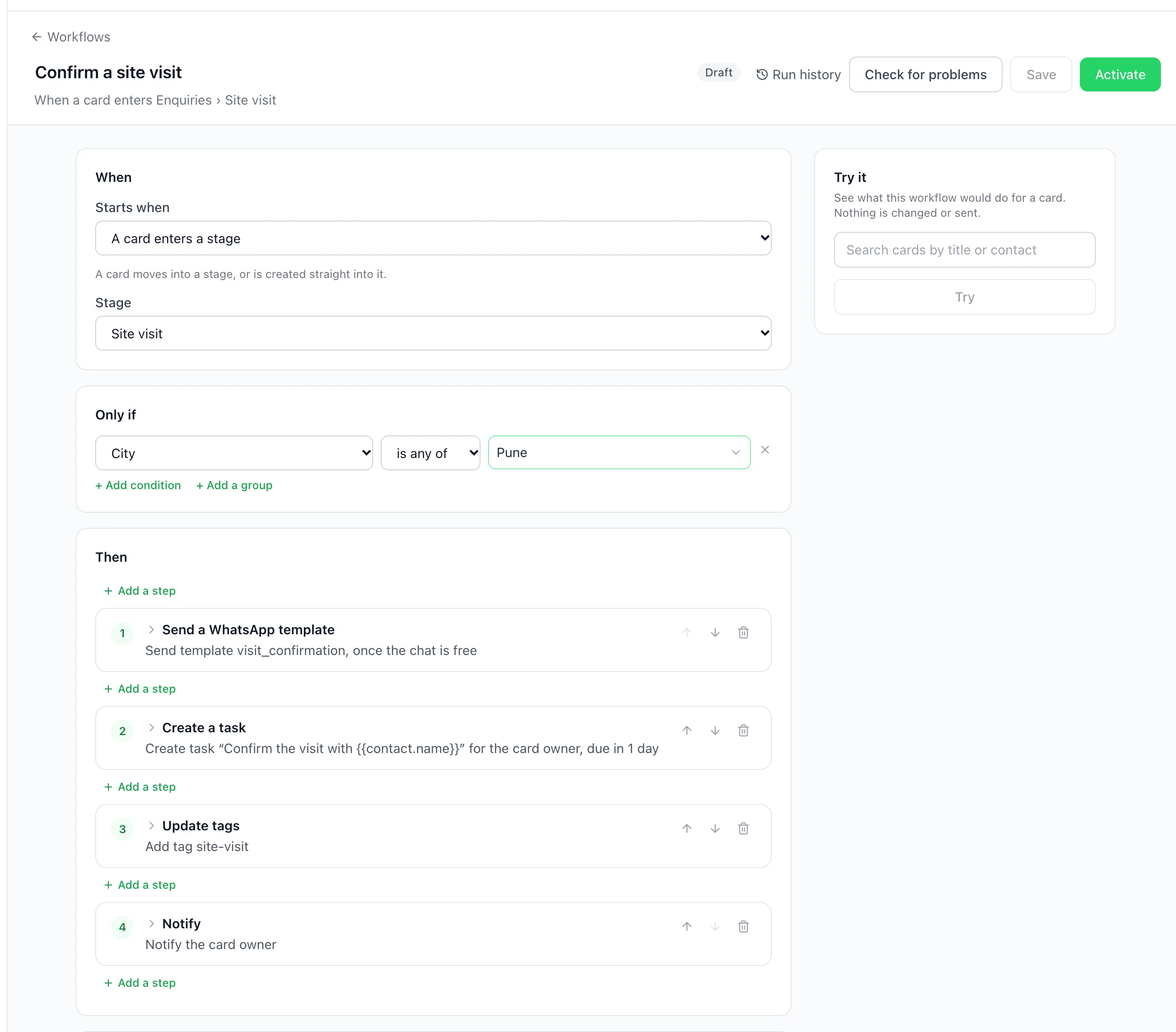
A workflow in BizBotify does the next step for you when something changes. Open Automation → Workflows, click New workflow (or, when you have no workflows yet, pick one under Start with a ready-made workflow), choose what starts it under When, for example A card enters a stage, add conditions under Only if, then add steps under Then such as Send a WhatsApp template, Assign an owner and Create a task. Use Try it on a real card, then Activate.
How to do it
Open Automation → Workflows
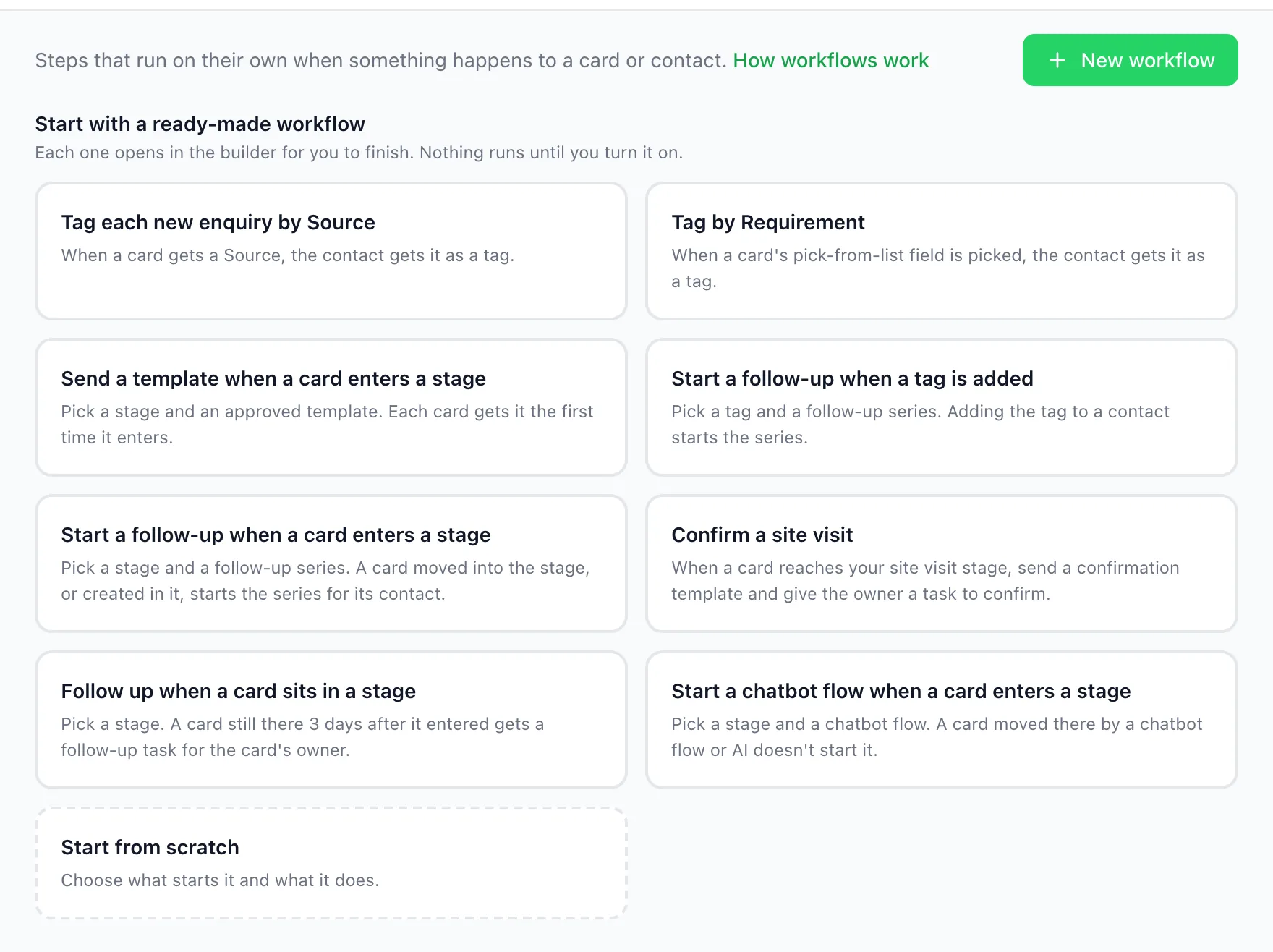
Open Automation → Workflows. While you have no workflows yet, the page shows Start with a ready-made workflow. Each one opens in the builder for you to finish, and nothing runs until you turn it on. For a blank builder, click Start from scratch or New workflow. Once you have a workflow, the ready-made cards no longer show, and New workflow opens a blank builder.
Choose what starts it (When)
Under When, pick one of the 12 triggers in Starts when. On a card: A card is created, A card enters a stage, A card is won, A card is lost, A card is assigned, A card field gets a value or changes and A card date is reached. On a contact: A tag is added, A tag is removed, A contact is assigned, A contact field gets a value or changes and A contact date is reached.
For this guide, pick A card enters a stage and choose the stage, for example Site visit. A card counts when it moves into the stage or is created straight into it. The date triggers work from a date field you add to your contacts or cards: pick On the day, some days before or after, and tick Every year for birthdays and anniversaries. They start at about 9 am in your workspace's time zone (or when your quiet hours end, if they cover 9 am), and past days are never caught up.
Add conditions (Only if)
Under Only if, add the checks a card must pass before the steps run: any contact or card field, tags, the amount, dates, Days in this stage, or Changed by (a person, a chatbot flow, a workflow, AI or an integration). With more than one check, pick Match all of these or Match any of these. For the site-visit example, add City is any of Pune, with City as a pick-from-list contact field. With no conditions, it runs for every card.
Add the steps (Then)
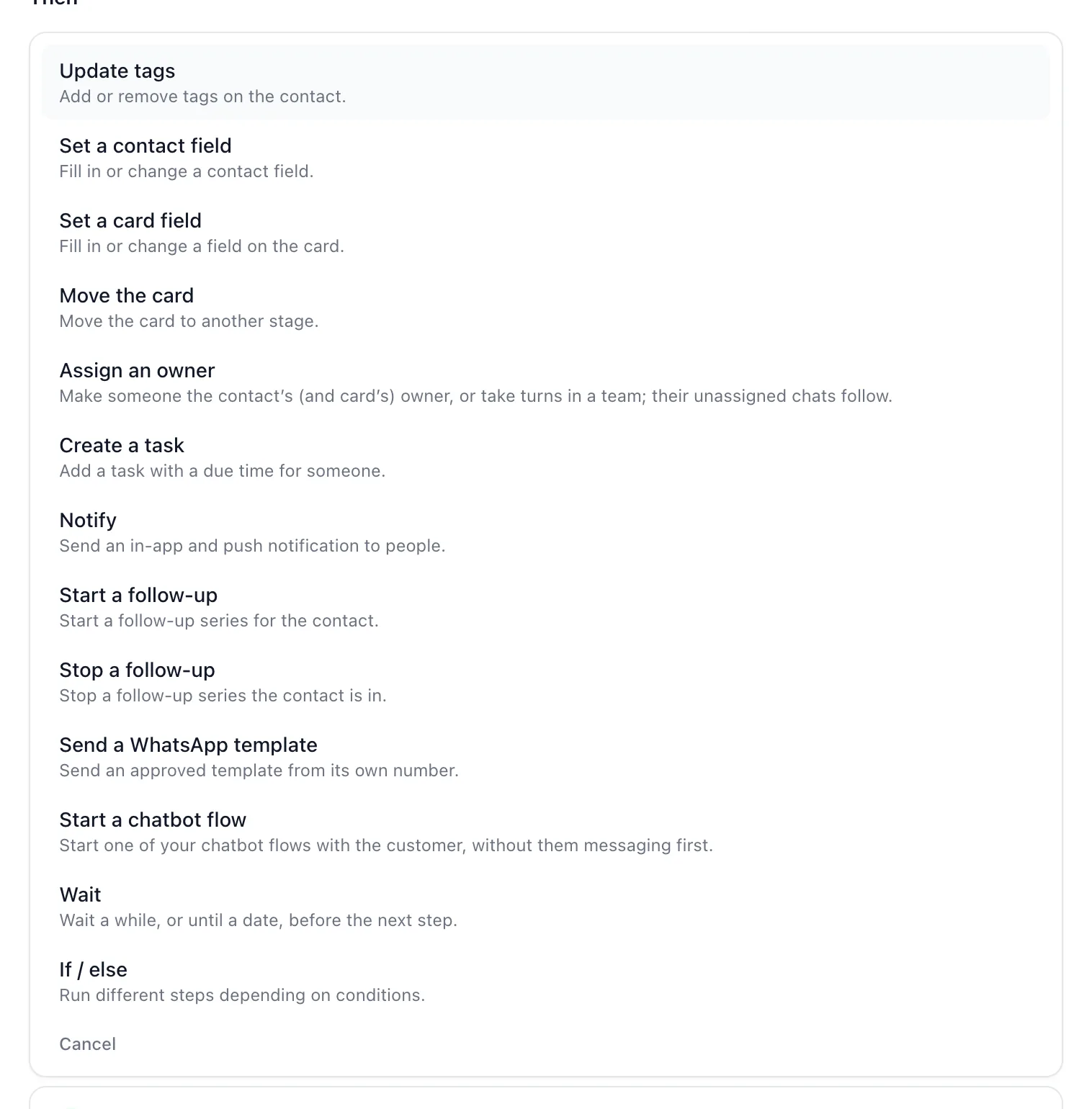
Under Then, add the steps in the order they should run. For the example: Send a WhatsApp template with your approved visit confirmation, Create a task "Confirm the visit with {{contact.name}}" for The card's owner, Update tags to add site-visit, and Notify the card's owner.
Fill each template variable from the contact's or the card's details, and give it a Default if blank (optional). If a variable is still blank and has no default, the send is skipped and run history says "Missing value for {{1}}". Wait until the chat is free is ticked on every new send step: while a chatbot flow or a teammate is talking with the customer, it holds the template for up to 1 hour, then sends anyway.
Use If / else to send different customers down different steps, with up to 10 branches. Use Wait to pause For a set time, up to 90 days, or Until a date.
Decide whether it runs again
When the workflow sends a message, Settings asks whether to run again for the same card. Only the first time (recommended) sends once for each card, even if it leaves the stage and comes back. Every time runs on each new entry, and is the recommended choice for date triggers, so a birthday wish goes out every year.
Try it on a real card
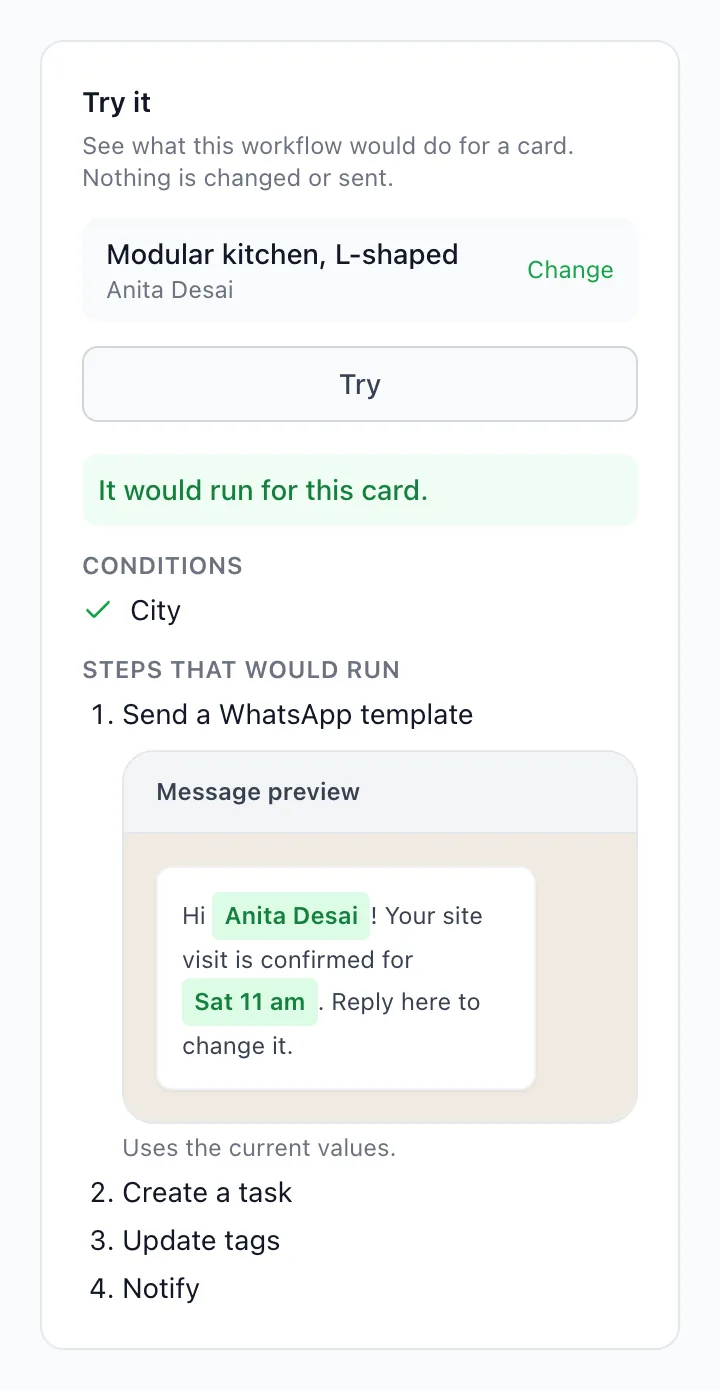
Save, then use Try it beside the builder: search for a card (or a contact, for a contact trigger), pick it and click Try. It shows whether the workflow would run, which conditions pass, the Steps that would run and a Message preview filled in with that customer's details. Nothing is changed or sent.
Try it doesn't check the daily marketing cap or the monthly message limit, or skip a message that would go out more than 6 hours late. Those checks happen when the workflow really runs.
Check for problems, then Activate
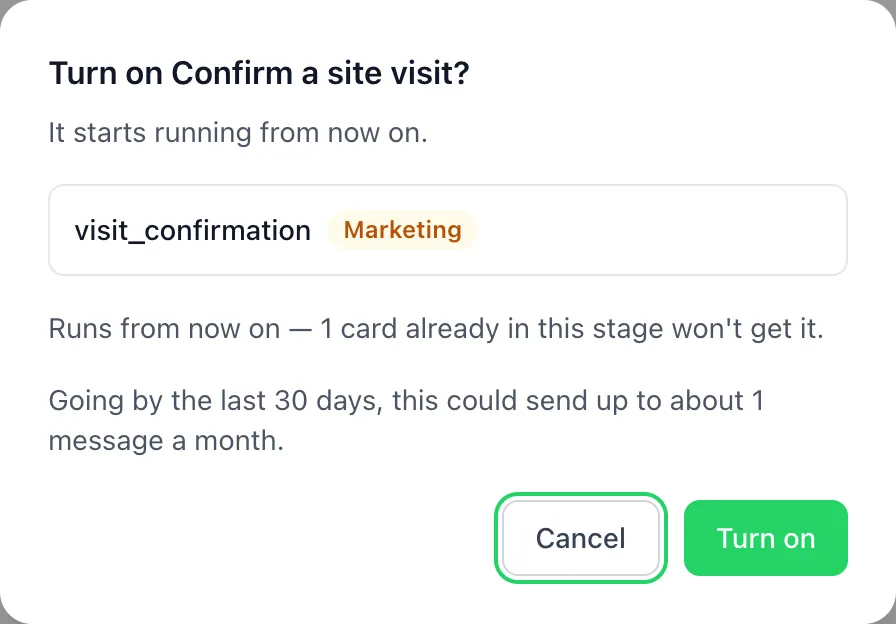
Check for problems lists what to fix in each section. Activate opens the Turn on dialog. It lists the templates the workflow sends and marks the Marketing ones, and a WhatsApp number with Low quality blocks it. When cards are already in the stage, it says Runs from now on: those cards won't get it. For a workflow that starts when a card is created, enters a stage, is won or is lost, sends a message and has no Wait or Start a follow-up, it also estimates the messages a month, going by the last 30 days. Click Turn on.
Read run history and fix Needs attention
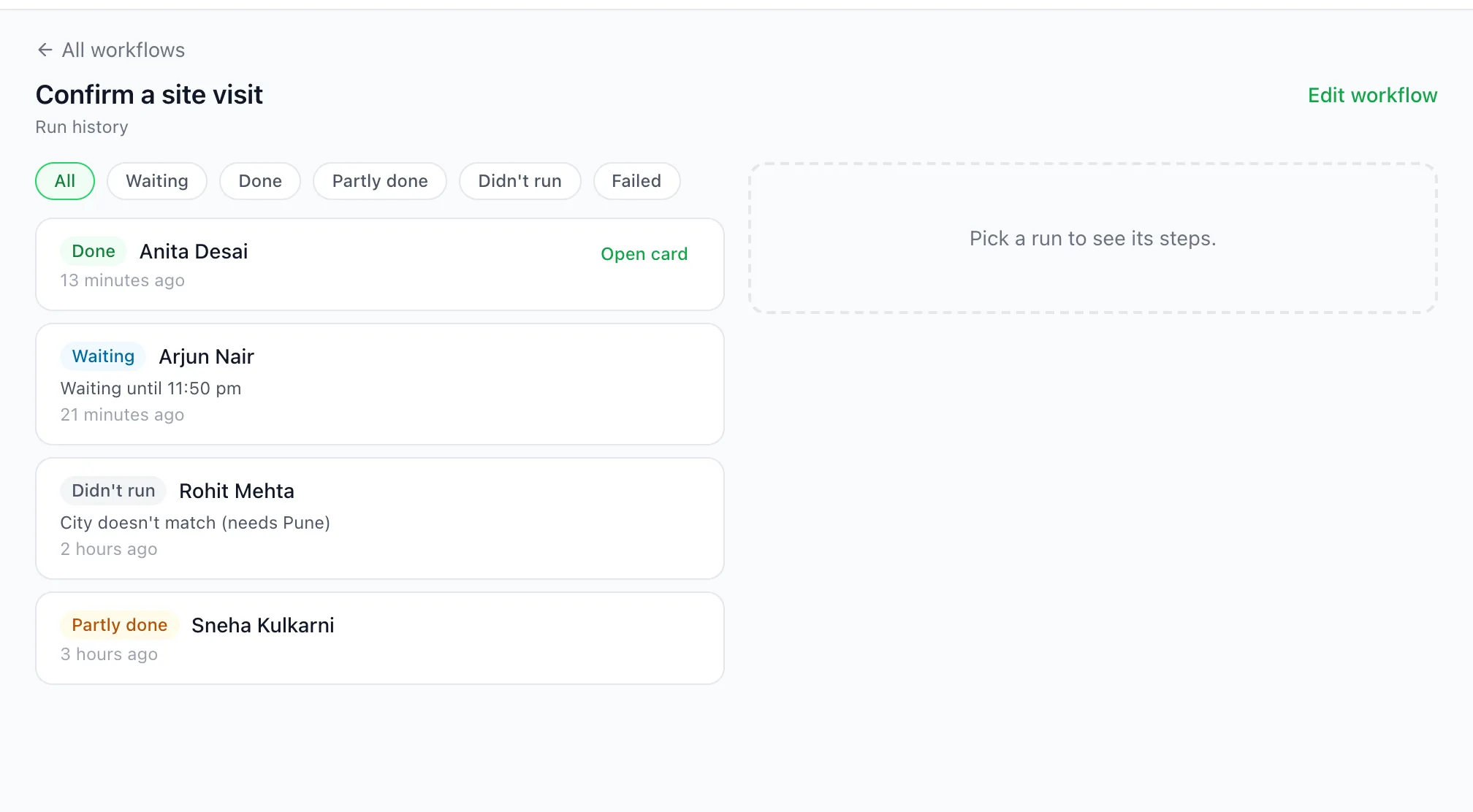
Open Run history from the list or the builder. Each run is Done, Partly done, Didn't run, Failed, Running or Waiting, with the reason in plain words, for example "City doesn't match (needs Pune)" or "The customer opted out of WhatsApp messages". Run history is kept 90 days (Didn't run rows: 30 days).
If something a workflow needs breaks, such as a template that is no longer approved or a deleted stage, the list marks it Needs attention. Click Fix to open the builder with Check for problems already run.
Six workflows to copy
Each recipe gives the settings to build it by hand with New workflow. Four of them are also ready-made, as a shortcut while you have no workflows yet.
Confirm a site visit Ready-made
- When: A card enters a stage, with the stage Site visit.
- Only if: optional, for example City is any of Pune.
- Then: Send a WhatsApp template (your visit confirmation), then Create a task "Confirm the visit with {{contact.name}}" for the card's owner, due in 1 day. Add Update tags (site-visit) and Notify the card's owner if you like.
Shortcut: if you have no workflows yet, click Confirm a site visit under Start with a ready-made workflow. It comes with the template and task steps, and picks your stage named Site visit if you have one.
Follow up when a card sits in a stage Ready-made
- When: A card enters a stage, with the stage to watch.
- Then: Wait for a set time of 3 days, then Create a task "Follow up with {{contact.name}} about {{enquiry.title}}" for the card's owner.
A card that has left the stage by the end of the Wait stops the run, so only cards still sitting there get the task. Shortcut: if you have no workflows yet, click Follow up when a card sits in a stage under Start with a ready-made workflow.
Tag each new enquiry by Source Ready-made
- When: A card field gets a value or changes, with the field Source.
- Then: Update tags, adding the new value as a tag.
Each contact then carries its card's Source as a tag, ready for segments and broadcasts. Shortcut: if you have no workflows yet, click Tag each new enquiry by Source under Start with a ready-made workflow (it uses your board's own name for enquiries).
Start a follow-up when a tag is added Ready-made
- When: A tag is added, with the tag, for example expo-2026.
- Then: Start a follow-up, with the follow-up series to start.
Build the series first: see setting up auto follow-ups. Shortcut: if you have no workflows yet, click Start a follow-up when a tag is added under Start with a ready-made workflow.
Share new leads in turn From scratch
- When: A card is created.
- Then: Assign an owner, with Take turns in a team and the team. Add Notify the card's owner if you like.
Each new card goes to the next person in the team in a fixed order, skipping anyone removed or deactivated, and the contact's unassigned chats go to that person too. A card already owned by someone in the team keeps its owner, so cards your reps create themselves stay theirs. It suits leads that arrive with no owner, such as website forms, lead ads and new chats nobody is assigned to. It doesn't know who is busy or on leave.
Birthday wishes every year From scratch
- First add a date field such as Birthday to your contacts.
- When: A contact date is reached, with that field, On the day, and Every year ticked.
- Then: Send a WhatsApp template with your birthday message.
- Settings: Every time, so it goes out again next year.
It starts at about 9 am in your workspace's time zone (or when your quiet hours end, if they cover 9 am). A birthday that passes while the workflow is off isn't caught up.
Frequently asked questions
Can a workflow start from a contact, not just a card?
Yes. A BizBotify workflow can start when a tag is added or removed, a contact is assigned, a contact field changes or a contact date is reached. These triggers work on any contact, whether or not it has a card. The card triggers start from cards on your boards.
Does a new workflow act on cards already in the stage?
No. A BizBotify workflow runs from when you switch it on, so cards already in the stage don't get it, and dates that passed while it was off are not caught up. When you click Activate, BizBotify tells you how many cards are already in the stage.
Does a workflow send messages at night?
A step that runs straight away sends straight away, even at night. In BizBotify, only times the system picks (the end of a Wait, a date trigger, or a send delayed because your workflows hit their hourly sending limit) move out of your quiet hours, which you set under Settings → WhatsApp → Compliance. A message over the daily per-customer marketing cap is skipped, not held.
Will a workflow wait for the customer to reply?
No. A BizBotify workflow can wait a set time, up to 90 days, or until a date, but never for a reply. Use a chatbot flow to hold a conversation; a workflow can start one with its Start a chatbot flow step.
How many marketing messages can a workflow send one customer?
By default, BizBotify sends a customer at most 3 automated marketing messages from workflows in 24 hours. You can set it from 0 to 20 under Settings → WhatsApp → Compliance. A message over the cap is skipped, not sent later. Utility templates don't count toward the cap, and customers who opted out get none.
Why didn't my workflow send?
Open the run in run history: BizBotify says why in plain words, for example "The customer opted out of WhatsApp messages", "This customer already got 3 automated marketing messages in the last 24 hours", "Too late to send: the change was over 6 hours ago" or "Missing value for {{1}}". After a Wait, the 6 hours count from when it ends.
Can I build workflows on my phone?
On a phone you can see your BizBotify workflows, switch them on or off and read run history. Building and editing a workflow needs a computer.