
WhatsApp Opt-Out (STOP) Handling and Compliance
Let customers unsubscribe with one word, and make sure campaigns and follow-ups never message them again.
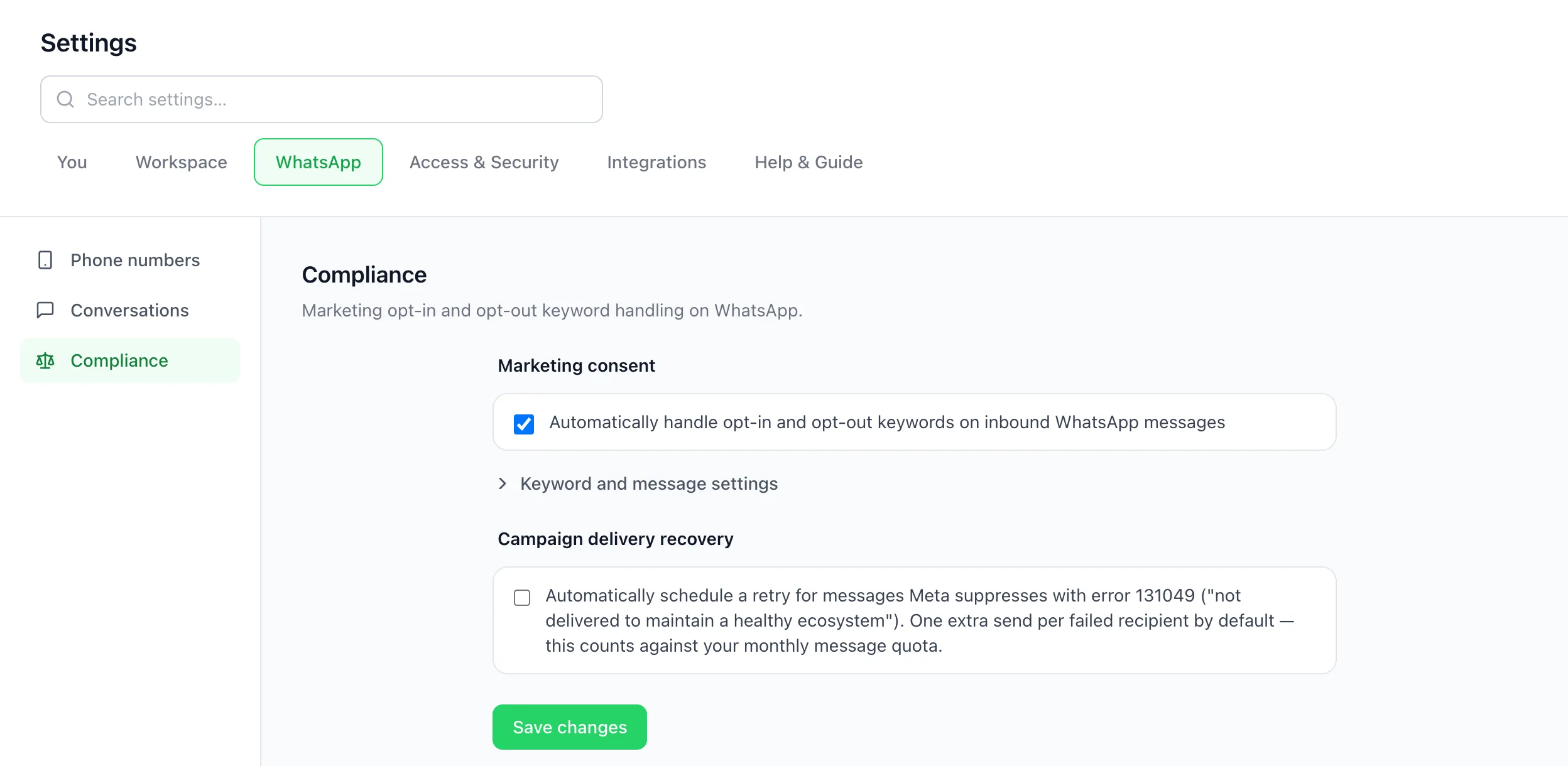
WhatsApp requires businesses to stop marketing to anyone who asks. In BizBotify, turn on automatic opt-in and opt-out handling under Settings → WhatsApp → Compliance. When a customer replies STOP (or another word you choose) they are marked as opted out and every campaign and follow-up skips them automatically; replying START opts them back in. You choose the keywords and the confirmation messages they receive.
How to do it
Open Settings → WhatsApp → Compliance
Tick Automatically handle opt-in and opt-out keywords on inbound WhatsApp messages.
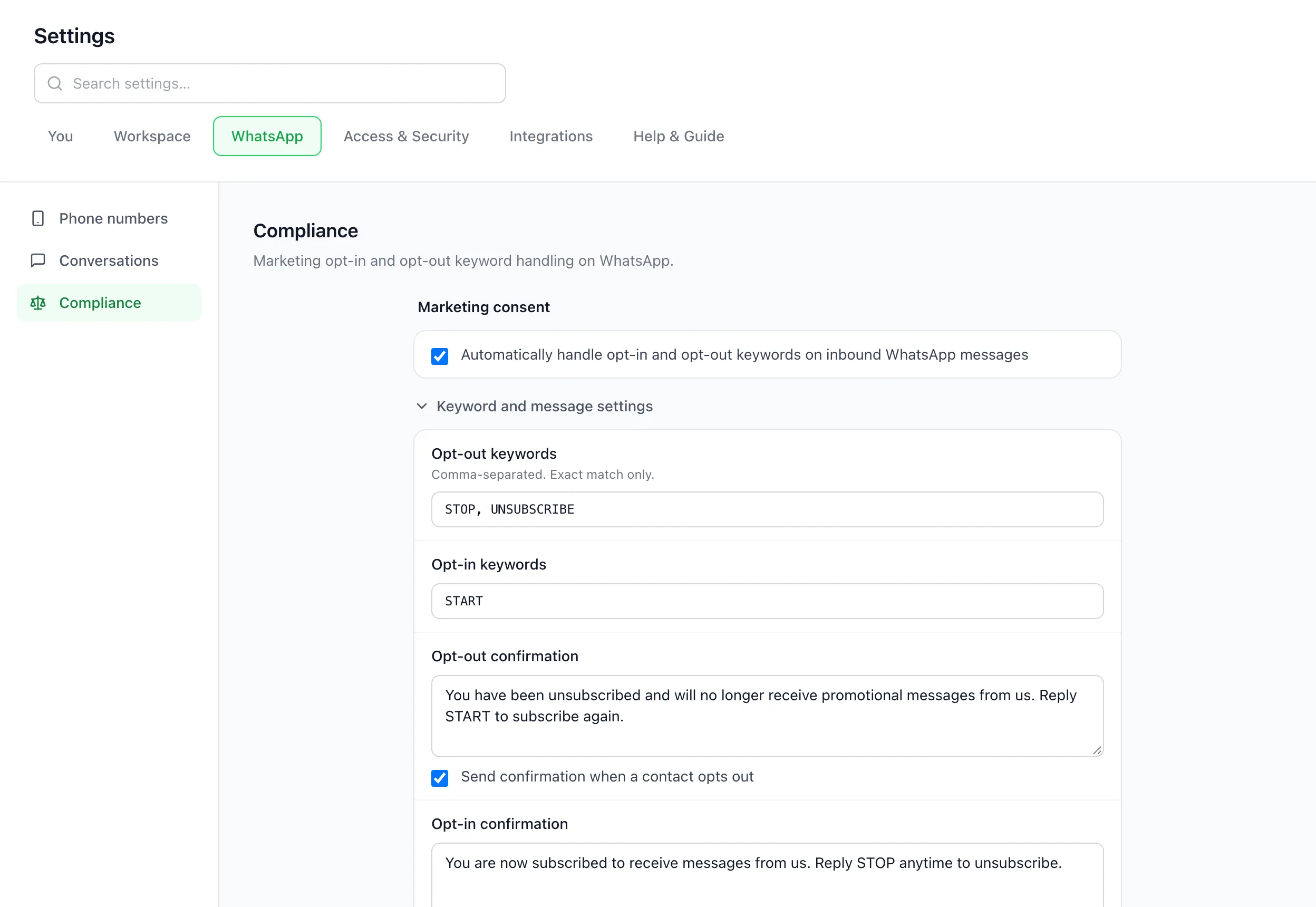
Choose the keywords and replies
Open Keyword and message settings. Opt-out keywords default to STOP, UNSUBSCRIBE and opt-in to START; add words your customers use, comma-separated. A keyword must be the whole message (exact match), so "stop sending me offers" is not treated as an opt-out. Edit the confirmation each person receives and untick Send confirmation if you prefer to stay silent.
Save and test
Click Save changes. From your own phone, reply STOP to your business number: you get the confirmation and the contact shows an Opted out date. Reply START to opt back in.
Turn on campaign delivery recovery (optional)
Meta sometimes holds back marketing messages with error 131049 ("not delivered to maintain a healthy ecosystem"). Tick Automatically schedule a retry to resend once to each affected recipient later. Each retry counts against your monthly message allowance. See WhatsApp message errors explained.
Other habits that keep your number safe
- Only message people who agreed. Collect consent in your forms, lead ads and at checkout; a consent box works in WhatsApp Forms.
- Give a way out in every campaign. Add a "Reply STOP to unsubscribe" line or a STOP quick-reply button to marketing templates.
- Send at a steady pace. Campaigns can use a daily limit: when the day's number is reached, sending pauses and carries on the next day.
- Pick the right template category. Offers are Marketing; order and booking updates are Utility. See creating message templates.
- Watch your quality rating under Settings → WhatsApp → Phone numbers. A falling rating means customers are blocking or reporting you.
Frequently asked questions
How do I handle STOP replies on WhatsApp automatically?
In BizBotify, open Settings → WhatsApp → Compliance and tick automatic opt-in and opt-out handling. Anyone who replies STOP or UNSUBSCRIBE is marked opted out and skipped by campaigns and follow-ups; START opts them back in.
Can I add my own opt-out words, such as in Hindi?
Yes. Add them to the opt-out keywords, comma-separated. Keywords match only when they are the whole message, so normal sentences containing "stop" are not treated as opt-outs.
Can I still message a customer who opted out?
From the inbox, yes. STOP switches off automated marketing: broadcast campaigns, auto follow-ups, workflow templates and chatbot flows a workflow starts skip the person, and the Integration API refuses to send them templates. Your team can still reply, or send a template, from the inbox, and keyword rules and chatbot flows still answer when the customer writes to you. Only send what the customer has asked for.
What is the difference between STOP and Meta's marketing opt-out?
STOP is handled by BizBotify for your business. Separately, WhatsApp lets users turn off marketing messages from a business in the app; Meta then blocks marketing templates to them and BizBotify shows the reason on the message.
Does opting out stop login codes (OTPs)?
No. A login code sent through BizBotify's API as an Authentication template with a copy-code (OTP) button still reaches people who replied STOP, because it is not marketing. Other templates sent through the API are refused for opted-out contacts.
Do I need to turn this on?
If you send marketing messages, yes. Honouring opt-outs is a WhatsApp Business policy requirement and protects your quality rating and messaging limits.