
How to Create WhatsApp Forms (Meta WhatsApp Flows)
Collect bookings, leads and feedback in a form that opens inside WhatsApp, so customers never leave the chat.
A WhatsApp Form (Meta calls them WhatsApp Flows) is a form with one or more screens that opens inside the WhatsApp chat: name, phone, a date, a list to pick from. The customer fills it in and the answers come straight back to you. In BizBotify you build one under Library → Forms from a starter or by describing it to the AI, test it on your own phone, publish it, then send it from a chatbot step or a template button. No code is needed.
How to do it
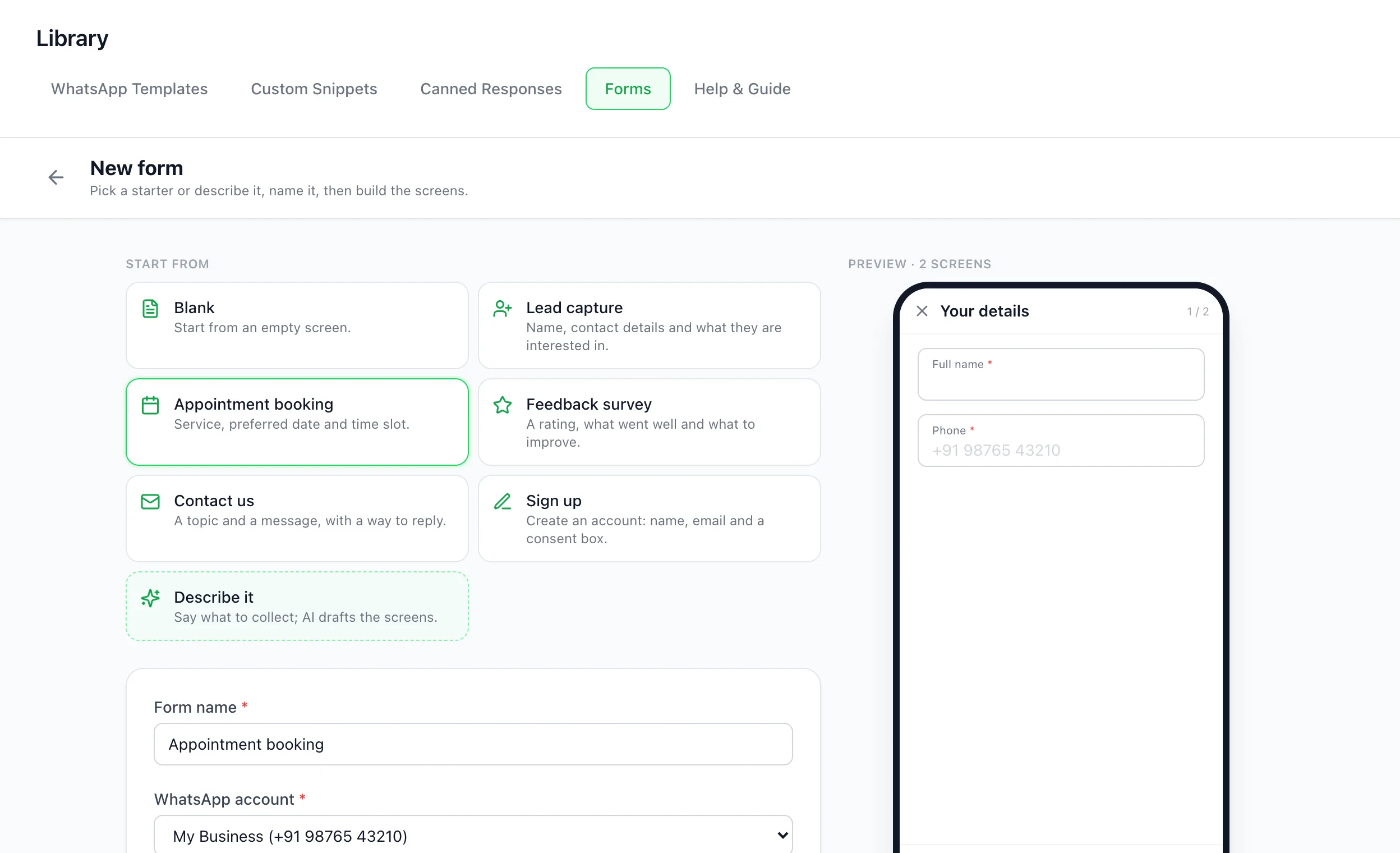
Open Library → Forms and click New form
Pick a starter: Lead capture, Appointment booking, Feedback survey, Contact us, Sign up or Blank. Or click Describe it and write what to collect in one sentence; the AI drafts the screens for you (one AI credit on BizBotify AI, free on your own AI key). Give the form a name, choose the WhatsApp number it will be sent from, and click Create.
Build the screens
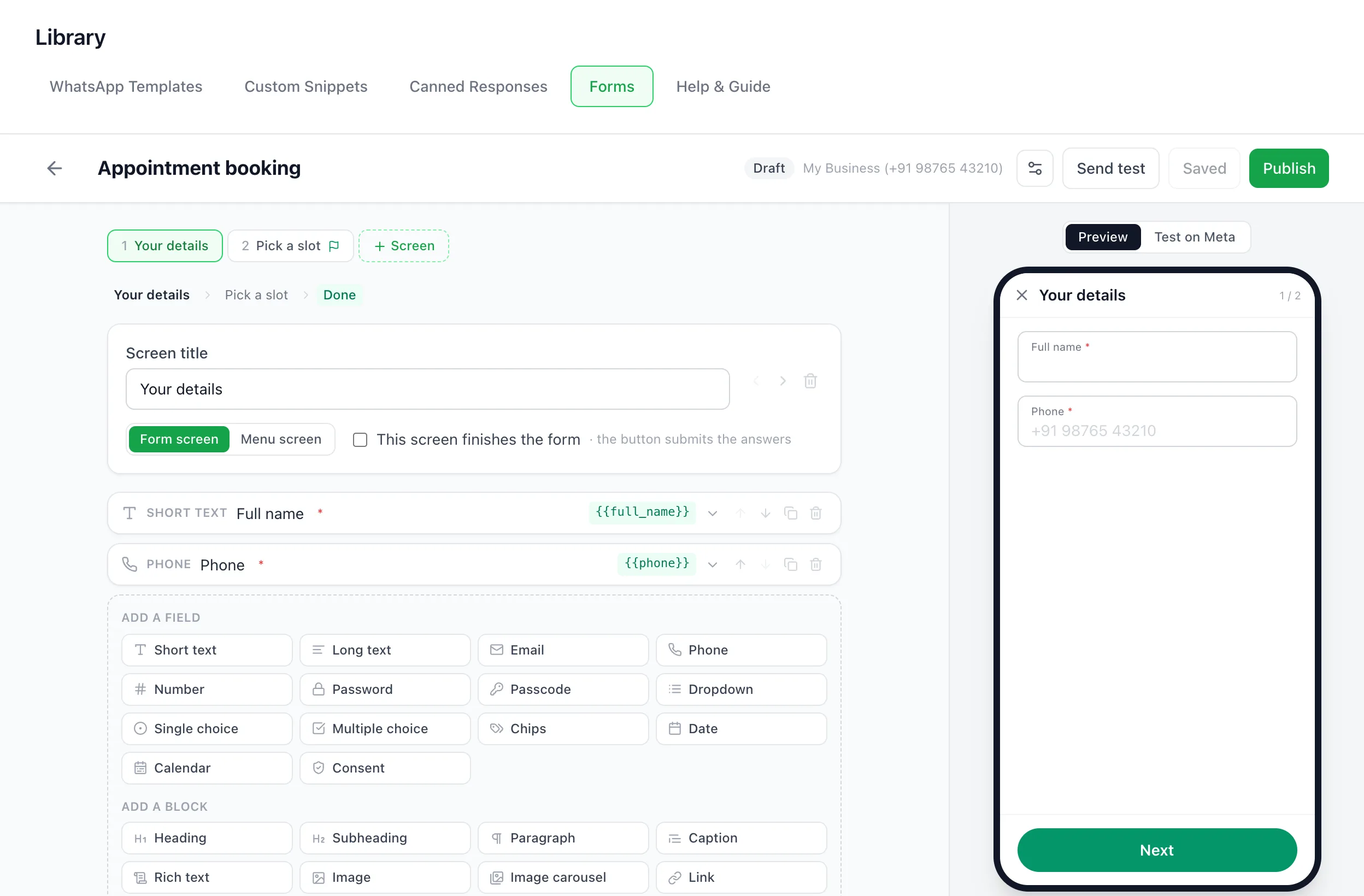
Click + Screen to add screens. On each screen add fields (short text, email, phone, number, dropdown, single or multiple choice, date, calendar, consent) and blocks (heading, paragraph, image), then set where its button goes. Every field is saved as a variable, such as {{full_name}}, that your chatbot can use later.
Add branches and conditions (optional)
Switch a screen to Menu screen to let the customer choose a path, for example "Book a demo" or "Get a quote", each leading to its own screens. Use Show only when on a block to hide it until an earlier answer matches, such as showing "Company name" only when the plan is Business.
Test it before you publish
Watch the phone preview while you build and use Previous and Next to walk through the screens. Click Test on Meta to see the form exactly as WhatsApp draws it. Click Send test to open it on your own phone; message your business number from that phone first, because WhatsApp only opens forms in an active chat.
Publish the form
Click Publish. WhatsApp freezes a published form so every customer sees the same version. To change it later, click Duplicate, edit the copy and publish it as a new version.
Send it to customers
Add a WhatsApp Form step to a chatbot flow, or add an Open Form button to a message template for campaigns. In the chatbot step, Prefill can fill text fields on the first screen with what you already know, such as {{contact_name}}. The answers come back as variables for the rest of the flow.
What you can build with WhatsApp Forms
- Appointment booking: service, preferred date and time slot on one screen.
- Lead capture: name, phone, email and what the customer is interested in, before a salesperson replies.
- Feedback survey: a rating plus what went well and what to improve.
- Sign-up with consent: name, email and a consent box for marketing messages.
- Quote requests with branches: a menu screen sends each product to its own questions.
Forms replace five or six back-and-forth messages with one tap, which means fewer drop-offs and cleaner data than asking questions one at a time.
Frequently asked questions
What is the difference between WhatsApp Forms and WhatsApp Flows?
They are the same thing. Meta's name is WhatsApp Flows; BizBotify calls them Forms so they are not confused with chatbot flows. A form opens inside WhatsApp with one or more screens of fields.
Do I need a developer to create WhatsApp Flows?
No. BizBotify's builder is visual: pick a starter or describe the form to the AI, add fields, preview it on a phone, and publish. BizBotify handles Meta's Flow JSON and publishing for you.
Can I edit a WhatsApp Form after publishing?
No, WhatsApp freezes published forms. Click Duplicate to make an editable copy, publish it as a new version, and point your chatbot steps and template buttons at the new one.
Why did my test form not arrive on my phone?
WhatsApp only opens a form in a chat that is already active. Send any message from your phone to your business number first, then click Send test again.
Can a form open with the customer's details already filled in?
Yes, for text fields on the first screen. In the chatbot WhatsApp Form step, set Prefill to a variable such as {{contact_name}}. Lists, dates and consent boxes cannot be prefilled.
Can I send a WhatsApp Form in a broadcast campaign?
Yes. Add an Open Form button to a template, get the template approved by Meta, and use it in a campaign.