
Managing Notifications
Get alerted about the chats and tasks that need you, and switch off the rest.
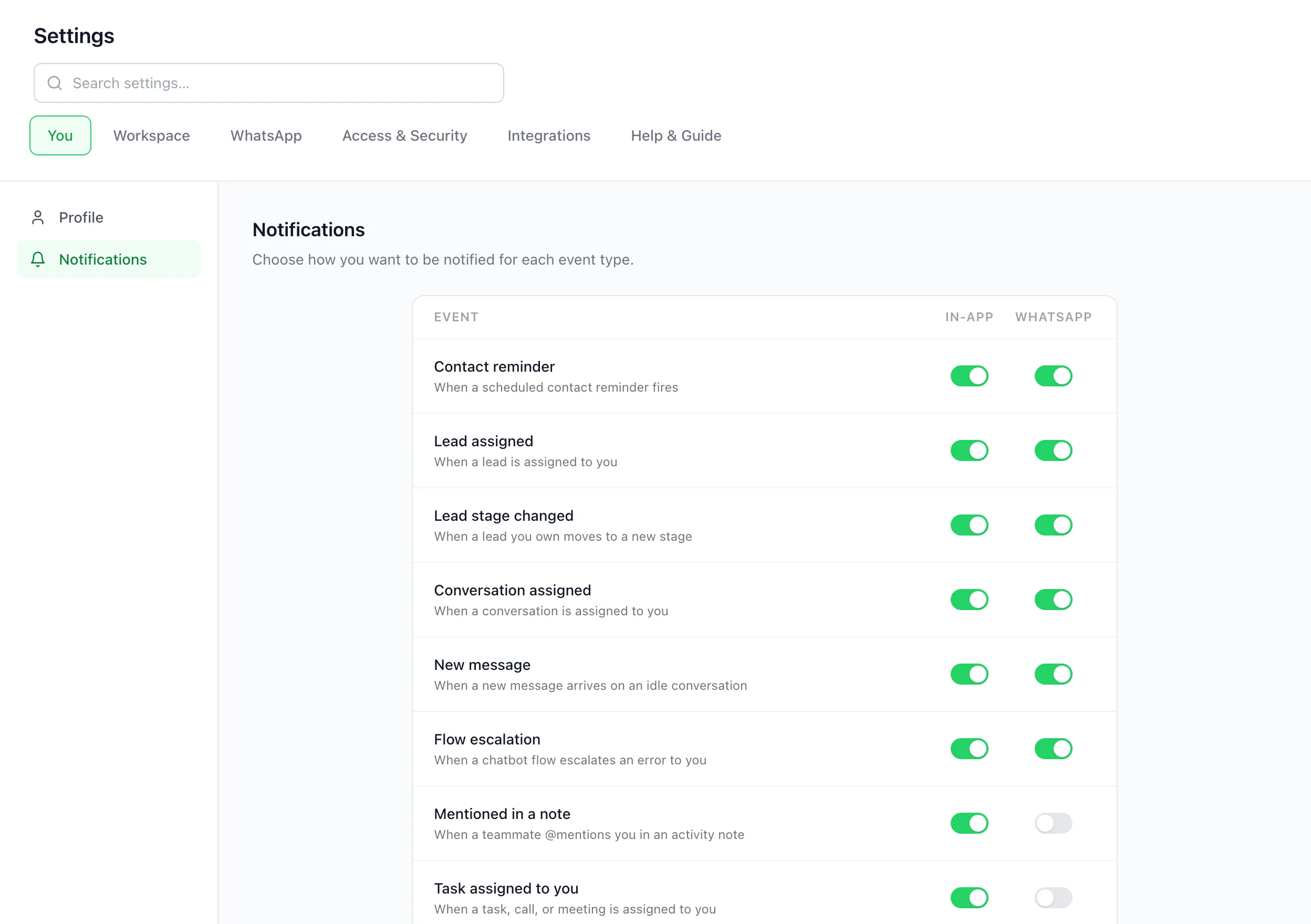
BizBotify notifies you in the app and, if you like, on your own WhatsApp. The bell at the bottom of the left sidebar shows recent alerts; opening it marks them read after a moment, and Clear all empties it. Choose which events notify you, and where, under Settings → You → Notifications.
How to do it
Check the bell
Click the bell at the bottom of the left sidebar. Use All or Unread to filter; everything is marked read shortly after you open the panel. Click Clear all to empty it.
Choose your alerts
Open Settings → You → Notifications. For each event, such as Conversation assigned, New message, Mentioned in a note or Task assigned to you, switch In-app, WhatsApp and Push on or off. Turning In-app off turns that event off everywhere.
Turn on push notifications on this device
At the top of the same page, click Turn on for this device, then click Allow when your browser asks. You will get a notification on this computer or phone even when BizBotify is closed. Do it once on each device you use. Click Send test notification to check it works.
Save
Click Save preferences.
Frequently asked questions
Can I get BizBotify alerts on my own WhatsApp?
Yes. Confirm your number under Settings → You → Profile, then switch on WhatsApp for the events you want under Settings → You → Notifications.
Can I get notifications when BizBotify is closed?
Yes. On each computer or phone, open Settings → You → Notifications, click Turn on for this device and allow notifications. It works in Chrome, Edge, Firefox and Safari on a computer and in Chrome on Android. Logging out of a device stops its notifications.
How do I get notifications on my iPhone?
In Safari, open BizBotify, tap Share, then Add to Home Screen. Open BizBotify from the new icon, log in, and turn on push under Settings → You → Notifications. It needs iOS 16.4 or newer; a normal Safari tab cannot show notifications.
I turned on push but nothing shows up. What do I check?
Click Send test notification. If nothing appears, make sure your computer or phone allows notifications from your browser (on a Mac: System Settings → Notifications) and that Focus or Do Not Disturb is off. If the page says notifications are blocked, allow them in your browser's site settings.
Why did my unread count reset?
Notifications are marked read shortly after you open the bell panel.
Do I get notified when a snoozed chat comes back?
Yes. When a snoozed chat wakes, the person it is assigned to gets a bell notification.
Can each teammate choose different alerts?
Yes. Notification preferences are personal; each person sets their own.