
Set Up a WhatsApp AI Chatbot Trained on Your Website
Answer customer questions on WhatsApp in any wording or language, from your own prices and policies, and hand over to a person when needed.
A WhatsApp AI chatbot answers customers' free-text questions using facts you give it. In BizBotify you set it up in four parts: an AI profile (name, tone, language and rules), a Knowledge Base built from your website and documents, an AI auto-reply that decides when the AI answers, and hand-over phrases that pass the chat to your team. It runs on BizBotify AI out of the box, one AI credit per answer, or on your own OpenAI, Anthropic or Google key at no credit cost.
How to set it up
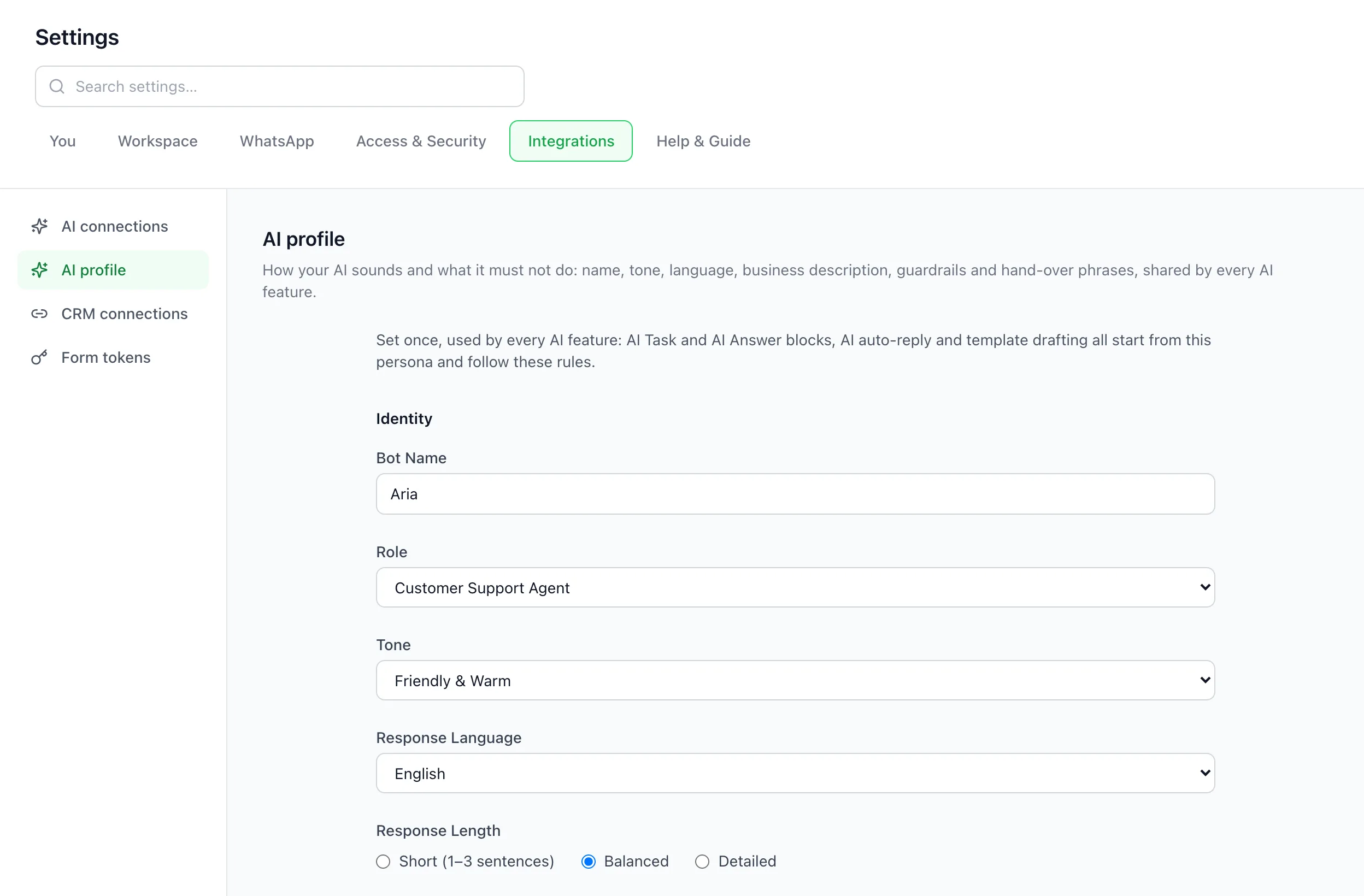
Give your AI a profile
Open Settings → Integrations → AI profile. Under Identity, name the bot, pick its role and tone, choose the reply language (Auto-detect follows the customer) and describe your business in a few lines. Under Guardrails, list topics it may or may not discuss and how it treats competitor questions. Click Save AI profile; every AI feature uses it.
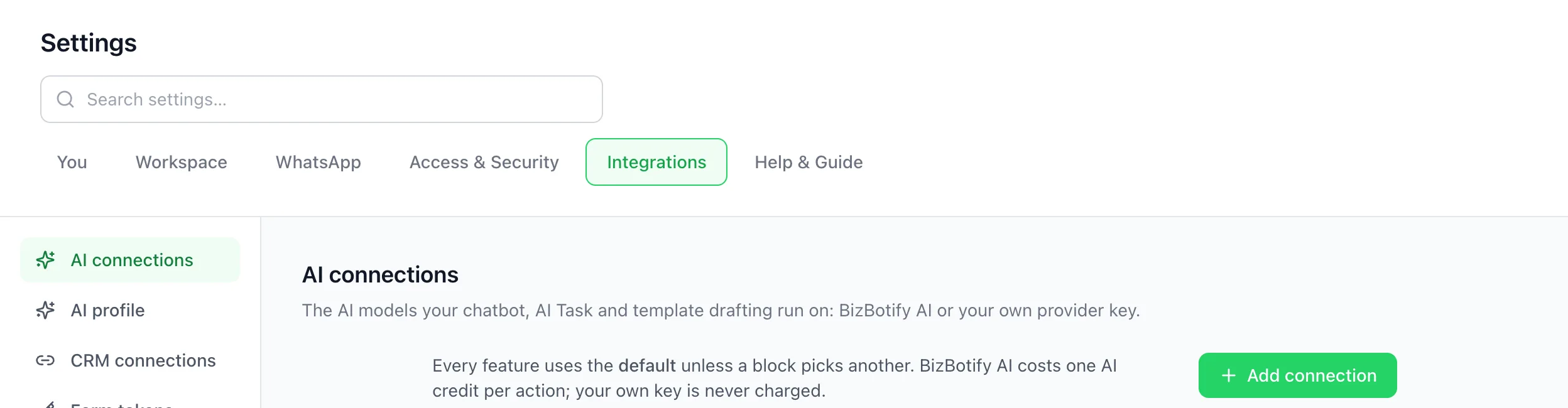
Choose the AI model (optional)
Open Settings → Integrations → AI connections. BizBotify AI is ready with no setup and uses one AI credit per action from your monthly allowance, shown on this page. To use a different model, click Add connection, pick OpenAI, Anthropic or Google, paste your API key and click Test connection. Actions on your own key never use credits.
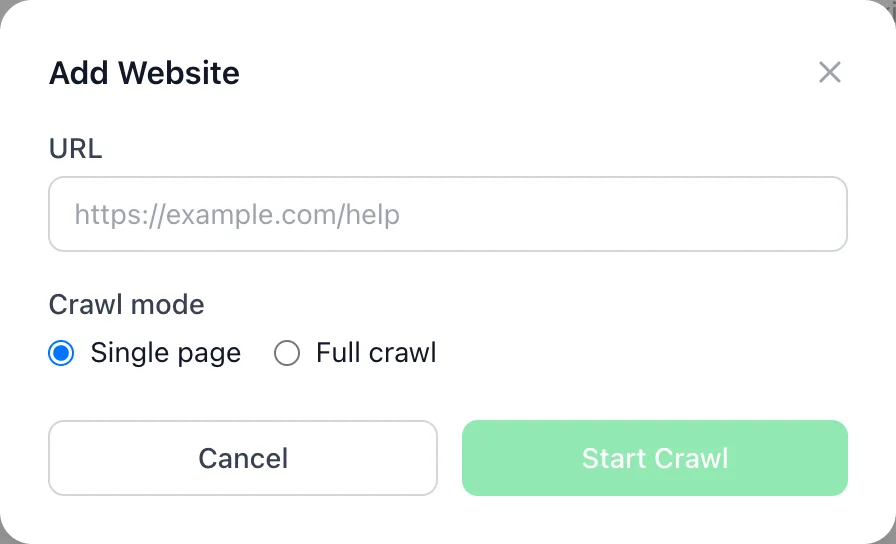
Train it on your website and documents
Open Automation → Knowledge Base. The knowledge base needs an OpenAI key to search your content: an OpenAI key under Settings → AI connections is used automatically, or add one under Embedding Config on this page. Then click Add Website and paste a page address (Single page) or your whole site (Full crawl), or click Add Document for price lists and policies. Wait until each source shows as ready.
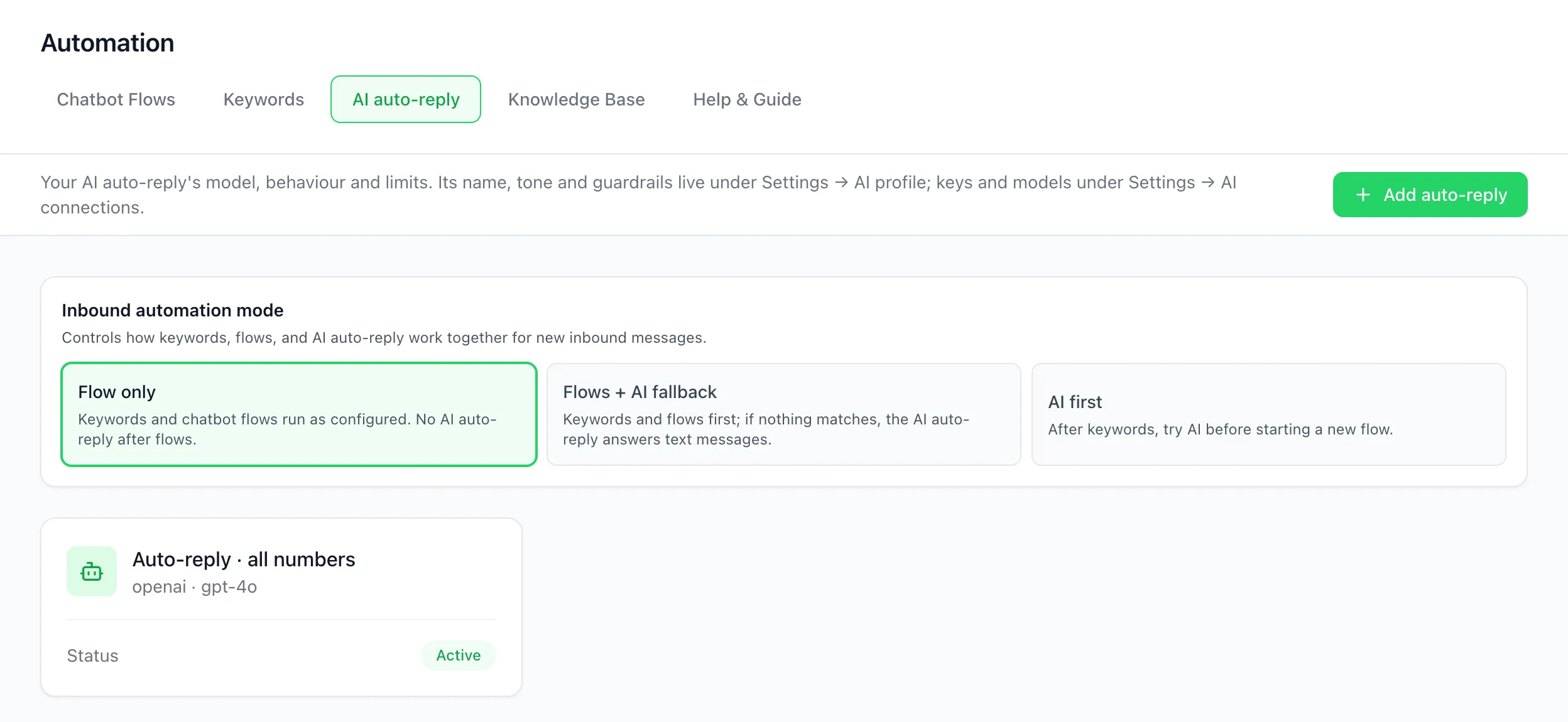
Switch on the AI auto-reply
Open Automation → AI auto-reply and click Add auto-reply. Under Behavior, turn on Include knowledge base context in AI replies. Then choose the Inbound automation mode: Flow only (no AI), Flows + AI fallback (keywords and flows first, AI answers what nothing else matched) or AI first (AI tries before a new flow starts).
Set up the hand-over to your team
Back in AI profile, add Hand-over phrases such as "talk to a human" or "agent". When a customer uses one, the AI stops and the chat goes to your team. The AI also stays quiet in any chat assigned to a person, and you can pause bot replies on a single chat from the inbox.
Collect details with the AI Task block
For lead qualification, add an AI Task block to a chatbot flow. List the details you need (name, budget, preferred call time, a document) and the AI chats until it has them all, checks formats, reads the answers back and saves them as variables. Tick Answer questions from the knowledge base and it also answers product questions mid-task. It can create the enquiry on your board, add tags and create a follow-up task.
How the AI stays accurate
- Answers from your content: with the knowledge base on, the AI uses your documents and pages. The auto-reply hands the chat to your team when it is not confident, and the AI Task block never guesses a price or policy; it says your team will confirm.
- Guardrails: allowed and blocked topics, competitor handling and sensitive topics it declines.
- Hand-over: hand-over phrases, assigned chats and per-chat pause keep people in control.
Frequently asked questions
Can I build a WhatsApp AI chatbot without coding?
Yes. In BizBotify you fill in an AI profile, add your website and documents to the Knowledge Base, and switch on the AI auto-reply. No code or prompt engineering is required; the system prompt is generated from your profile.
Which AI model does BizBotify use?
BizBotify AI works out of the box. You can add your own OpenAI, Anthropic or Google key under Settings → Integrations → AI connections and make it the default, or pick a model per flow block.
How much does the AI chatbot cost?
AI is included on the Growth plan and is a ₹149/month add-on on Starter. On BizBotify AI each AI action uses one credit from your monthly allowance; actions on your own API key never use credits.
Will the AI make up prices or policies?
It answers from your Knowledge Base. When it is not confident, the auto-reply hands the chat to your team, and the AI Task block says your team will confirm instead of guessing. Hand-over phrases also pass the chat to a person.
Can the AI reply in Hindi or other languages?
Yes. Set the reply language to Auto-detect in the AI profile and the AI answers in the language the customer writes in.
How do I stop the AI for one customer?
Assign the chat to yourself or a team, or use the Bot replies pause in the contact drawer. The AI stays quiet in that chat until it is resolved or resumed.